


Discernable Link Text - Remediation Guide
Introduction
Discernable link text is very important for the readability and accessibility of your Ensemble pages, but it is sometimes difficult to identify where and how discernable link text accessibility issues may occur, because they are not always visible on live pages. This guide will walk through the process of identifying where on your pages these issues occur (using axe DevTools), and how to fix them in the Ensemble Author's HTML editor.
Video Guide
Written Guide
**PLEASE NOTE that finding and understanding incorrect HTML is a necessary part remediating Discernable Link Text Issues in the Ensemble editor. If you are having difficulty with this, please get in touch with us at engtechteam@vt.edu or 540-231-9076.
Instructions
Before You Start:
If you don't already have the axe Devtools Browser Extension installed, please go look at our axe Devtools installation video guide.
Step 1 - Open axe DevTools and Run a Scan
Navigate to your live Ensemble page, open the axe DevTools browser extension, and run a Full Page Scan.

Step 2 - Locate Discernable Link Text Issues
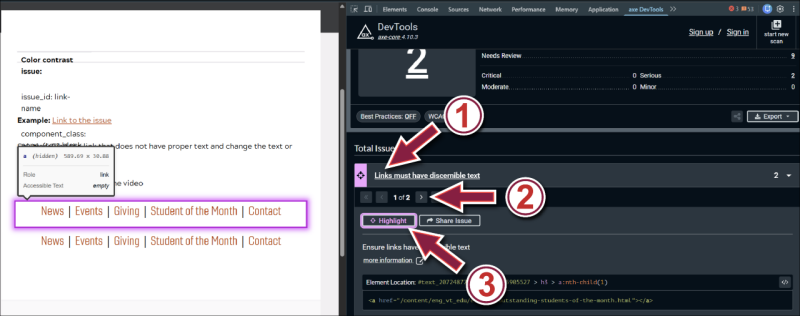
Once the scan completes, open the issue group labeled Links must have discernable text (1), scroll through the individual issues with the previous/next arrow buttons (2), and click the highlight button (3) to highlight the link on your page with a discernable link text issue.
(Note: You may not see a visible link highlighted, since some discernable link text issues hide links entirely; it's possible that the highlight function will highlight a blank portion of the live page - where a link DOES exist, but isn't visible to readers.)
Step 3 - Locate the Issue in the Ensemble Author (Editor)
Navigate to your page in the Ensemble Author system, and open the page in the editor.

Scroll down your page and locate the area of the page that was highlighted during the scan.
Please remember that even though the example presented in the images below shows a visible group of links, that you MAY have to look in blank areas of a page to find certain types of discernable link text issues.
Step 4 - Open the Component HTML Editor
Once you've found the area/links with the link text issue, click inside the component surrounding the area to highlight it and bring up the Menu Bar; click the Edit button (1); expand the editor by clicking the Fullscreen button (2); and select the Source Edit option (3) to bring up the HTML editor.



Once you've selected the Source Edit option, you will be able to see and edit the page's HTML. You will need to start looking for a link in the HTML that has no written link text associated with it.
A properly formatted link will look like this: <a href="/content/eng_vt_edu/en/ceed/outstanding-students-of-the-month.html">Student of the Month</a>, with the 'Student of the Month' text being the portion of the HTML that will be the visible link text on the live version of your page.
(Also shown as Figure 1 in the image below).
In this example, a link has been accidentally duplicated at the beginning of the HTML, without visible link text: <a href="/content/eng_vt_edu/en/ceed/outstanding-students-of-the-month.html"></a> (Also shown as Figure 2 in the image below). When link text has been left out in this manner, your link will technically exist, but will not be visible at all on your live page.

Step 5 - Fix the Link
Now you have two options: You can either fill in the link text for the link (in the manner shown for a properly formatted link - with the link text starting after the closing bracket of the href tag, and ending before the closing </a> anchor tag), or you can delete the entire link from the HTML. In this example case (and in many cases in the Ensemble Author system), the link has been accidentally created or duplicated, and the original link is already properly formatted. Since the duplicate is redundant, you can delete it entirely.
If you have questions about the information in this guide, please contact us at engtechteam@vt.edu or 540-231-9076